
Short answer: create a LinkedIn Event, promote it to your exact buyers with Event Ads for about four weeks, then send a Conversation Ad invitation to the people who’ve already shown interest. Finish with reminders and a follow-up for everyone who couldn’t make it.
This guide shows how to promote a webinar on LinkedIn, week by week, using LinkedIn’s own tools and numbers.
The empty-room problem
Every marketer knows this moment. The webinar starts in two minutes. The speaker is ready. The slides look great. And the attendee count reads… seven. Three of them are colleagues.
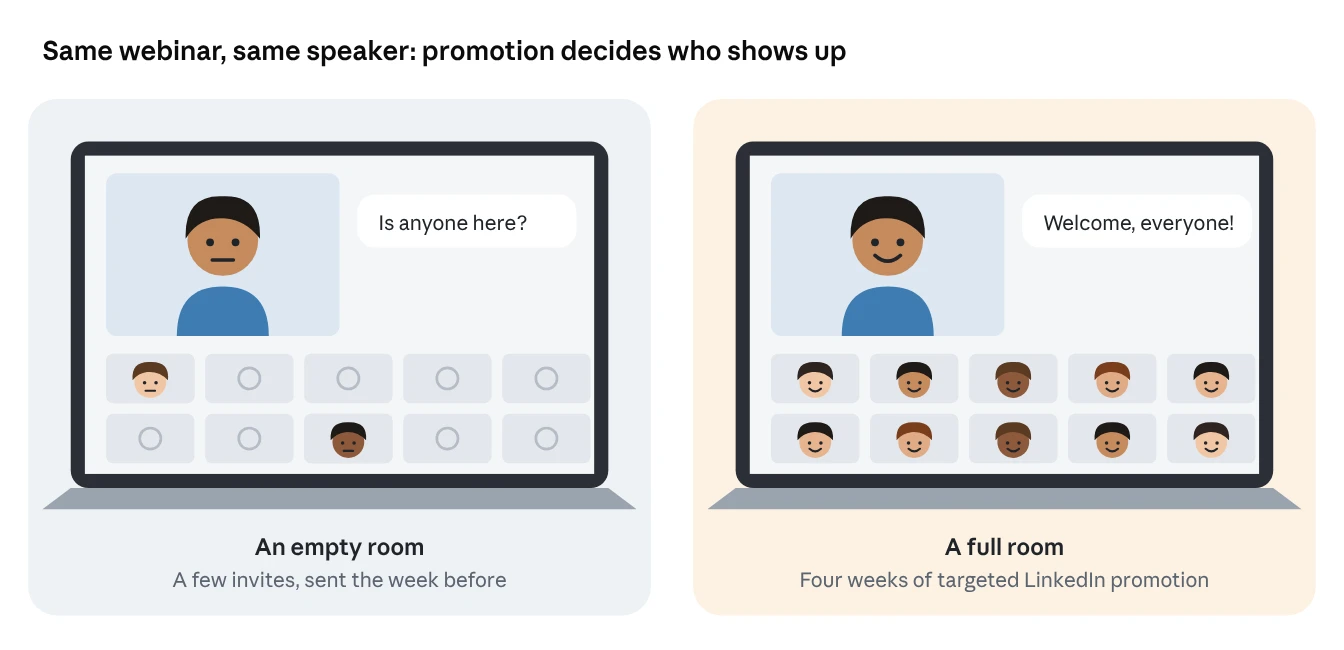
The content wasn’t the problem. Promotion was. It started too late, reached the wrong people, or asked strangers for an hour of their time with no warm-up at all.
Webinars are worth fixing, because they work when people show up. In a survey LinkedIn shared, 58% of content marketers said their webinars produced the best results of all the content they made that year.
The two tools that do the heavy lifting
Event Ads bring in the crowd. Conversation Ads bring in the people who were almost ready. You need both, because they do different jobs.
Tool 1: LinkedIn Events and Event Ads
A LinkedIn Event is a free event page on LinkedIn with its own link, date, speakers and a register button. An Event Ad promotes that page in the feed to the audience you pick, and LinkedIn fills in the important details automatically: date, time and how to join.
LinkedIn says event content stands out: LinkedIn Events can drive a 131% higher click-through rate than regular video, and after the event, engagement stays 19% higher.
Three details make Event Ads especially useful for webinars:
Social proof. The ad can show people when a mutual connection is interested in attending. Nothing fills a room like seeing a colleague is going.
A built-in form. If your Page hosts the event, you can switch on a registration form pre-filled from the person’s profile: name, email, job title, company and country. One click and they’re in.
Registration reporting. Campaign Manager shows event registrations driven by your ads, so you know what each dollar did.
Already using Zoom, Teams or another webinar tool? No problem. When you create the event, choose External event link and paste your webinar link. LinkedIn still handles promotion and registration. (LinkedIn does recommend streaming on LinkedIn Live where possible, to stop people dropping off when they switch platforms.)
Tool 2: Conversation Ads
A Conversation Ad lands in someone’s LinkedIn inbox as a message with reply buttons. LinkedIn suggests using them to invite prospects to an event or drive webinar sign-ups.
The trick is who gets them. Sending an inbox message to strangers feels pushy. Sending one to people who already watched your speaker’s video or visited the event page feels like a personal invitation. That’s the approach this guide follows.
| Event Ads | Conversation Ads | |
|---|---|---|
| Where it shows | LinkedIn feed | LinkedIn inbox |
| Best audience | Your full target list | People who already engaged |
| Job in this plan | Awareness and most registrations | Personal invite and last-minute push |
| Objectives available | Brand awareness, website visits, engagement | Brand awareness, website visits, lead generation, website conversions |
| Watch out for | Live Event links can’t be used in event ads | Can’t target members in the EU |
The four-week plan at a glance
Start four weeks out, spend most of your budget on Event Ads, and save Conversation Ads for the final two weeks. LinkedIn itself recommends setting up your event at least 2 to 4 weeks in advance so there’s time to promote it.
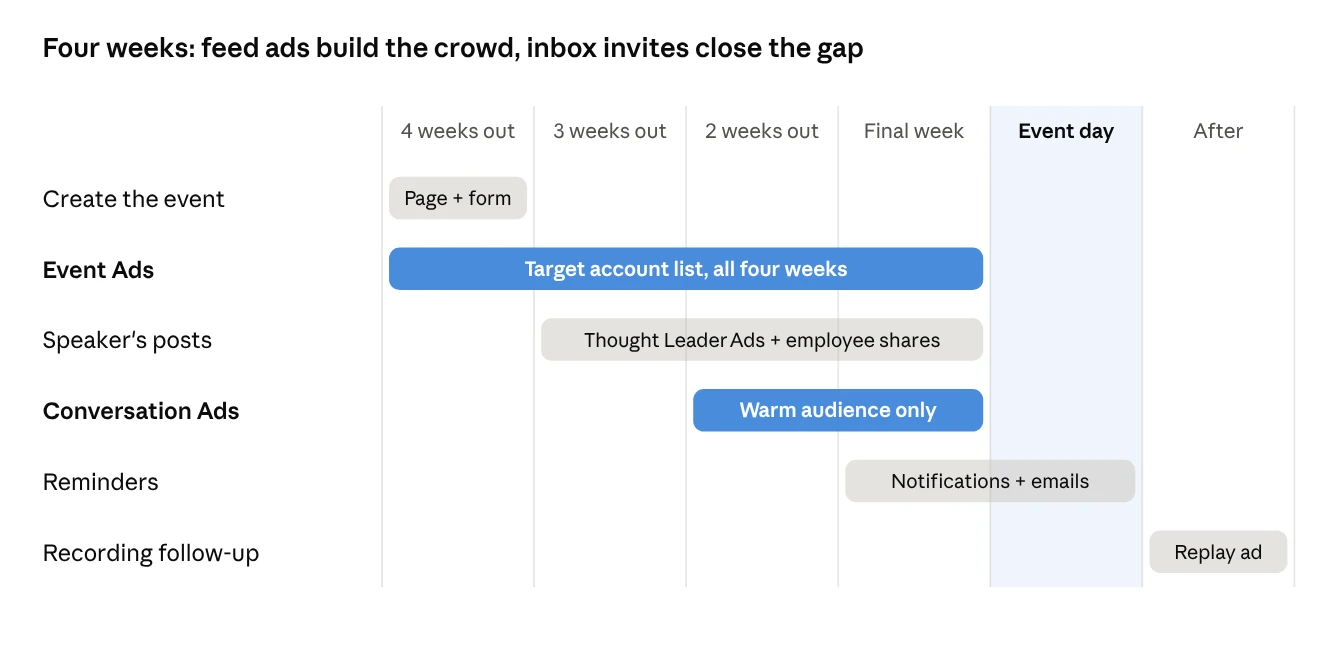
Here’s the logic, week by week:
Four weeks out: create the event and launch Event Ads to your target accounts. This is the widest net.
Three weeks out: your speaker starts posting about the topic. Promote their best post as a Thought Leader Ad. People meet the speaker before they meet the invitation.
Two weeks out: you now have warm audiences: event page visitors, video viewers, people who engaged with the speaker. Send them a Conversation Ad invite.
Final week: keep Event Ads running, follow up on the Conversation Ad, and send reminders.
Event day: run the session, ideally on LinkedIn Live or with your external link.
After: send the recording to everyone, and promote a replay to people who registered but didn’t attend.
Why not send Conversation Ads from day one? Because an inbox message from a company you’ve never heard of feels cold. Two weeks of feed ads and speaker posts make the invite feel familiar.
Step by step: create the event and launch Event Ads
Create the event from your company Page, switch on the registration form, then promote the event link in Campaign Manager.
Part 1: Create the LinkedIn Event
From your Page’s admin view, choose Events, then Create an event.
Set your Page as the organizer. Only Page-hosted events get the registration form and Event Ads.
Pick Online, then choose LinkedIn Live or External event link (for Zoom, Teams and similar).
Write a short, clear name with the topic’s keywords. LinkedIn suggests a cover image at least 480 pixels wide in a 16:9 ratio.
Tick Use a LinkedIn registration form and add your privacy policy link.
Add your speakers and post the event.
Check everything before you post. LinkedIn won’t let you change the organizer, event type or format afterwards, and a registration form can’t be switched off or edited once it’s on. LinkedIn even offers a built-in test event option, so use that rather than experimenting on the real thing.
Part 2: Launch the Event Ads
In Campaign Manager, create a campaign with the brand awareness, website visits or engagement objective.
Choose Event as the ad format.
Click Create new ad and paste your LinkedIn Event link. The event image becomes the ad.
Add a short intro line that sells the outcome, not the webinar. “Learn how finance teams close the books in 4 days” beats “Join our webinar”.
Target your account list plus job functions, and launch.
Short on time? The Boost button on your event page creates a simple event ad in a few clicks: pick the audience, set a schedule and budget, and pay.
Part 3: Get your team posting
Ask the speaker and a few colleagues to share the event from their own profiles. Page admins can also invite their first-degree connections to the event. Promote the speaker’s best post as a Thought Leader Ad, and you’ve put a familiar face on the invitation.
The Conversation Ad invite: a flow that works
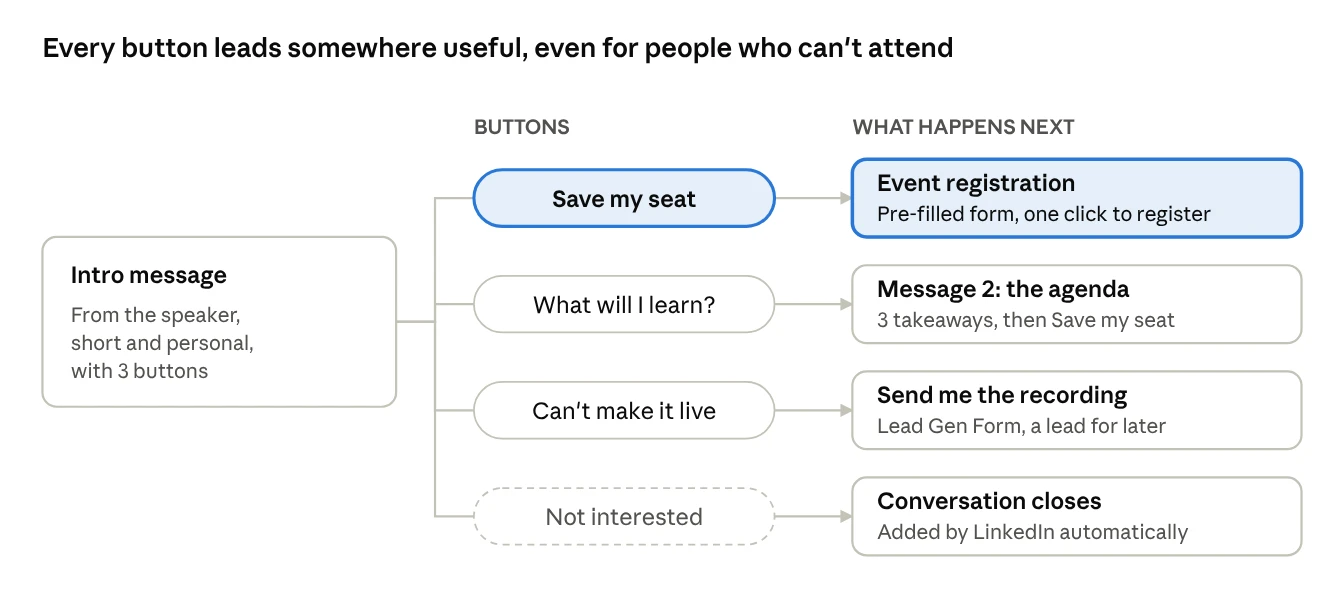
Send the invite from the speaker, to warm audiences only, with a button for people who can’t attend live. That last button is the one most teams forget, and it often collects valuable leads.
Who gets the invite
Build a Matched Audience from people who already showed interest, then target the Conversation Ad only at them:
People who responded to your LinkedIn Event (to remind them, not re-invite them)
Viewers of your speaker’s video or the event teaser
Visitors to your website’s webinar page (via the Insight Tag)
People who engaged with your Event Ads or Thought Leader Ads
LinkedIn needs at least 300 members in an audience before it can run.
Sample copy you can adapt
Subject: A seat for you on 14 May?
Hi %FIRSTNAME%, I’m Meera, and I’m running a 40-minute session on closing the books faster. I’ll share the three changes that cut our month-end from 12 days to 4. No slides full of logos, just what worked.
[Save my seat] [What will I learn?] [Can’t make it live]
Notice what it does. It says who’s speaking, what they’ll get, and how long it takes, in under 500 characters. That matches LinkedIn’s own advice to keep messages short, conversational, with two to three messages and at least two buttons.
Settings that matter
Objective: lead generation, so the “Save my seat” button can open a pre-filled form. With lead generation, one button must open a Lead Gen Form.
Sender: the speaker, using the same face people saw in the Thought Leader Ads.
Buttons: up to five per message, 25 characters each. LinkedIn adds “Not interested” automatically.
Frequency: LinkedIn strictly limits how often one person gets sponsored messages, so one well-timed invite beats three rushed ones.
Europe: Conversation Ads can’t reach EU members, so lean on Event Ads and Thought Leader Ads there.
If your webinar is on another platform, point “Save my seat” to your LinkedIn Event page or your registration page instead of a Lead Gen Form. Either way, track it with the Insight Tag.
From registrant to attendee to pipeline
A registration is a promise, not a guarantee. The work after someone clicks “Register” decides whether they show up, and whether the webinar ever turns into revenue.
Before the event: get them to show up
Use LinkedIn’s built-in reminders. People who register for a LinkedIn Event get an email and/or LinkedIn notification reminding them about it.
Add your own reminders. LinkedIn’s marketing team recommends “Add to Calendar” links and automated reminders, noting that a day-of reminder 30 minutes ahead can drastically increase participation.
Respect consent. Download registrants from Manage attendees. Only send marketing to people who ticked the consent box. Also note the download can lag by four to five days, so don’t rely on it for same-day reminders.
During the event: make it worth their hour
Keep the promise from your invitation. Teach the three things you said you’d teach. Take live questions. If you’re on LinkedIn Live, attendees can comment in real time, which keeps people watching.
After the event: turn interest into conversations
LinkedIn suggests sending “Thank You” notes to attendees and “Sorry We Missed You” notes with a summary to people who couldn’t come. Then use ads to keep going:
| Group | What to show them next |
|---|---|
| Attended live | A case study or a short Conversation Ad offering a 15-minute follow-up call |
| Registered but missed it | The recording, promoted as an ad to your event audience |
| Clicked “Can’t make it live” | The recording plus one practical takeaway |
| Saw ads but never registered | A Thought Leader Ad with the best two-minute clip from the session |
LinkedIn’s own event page describes this “after” phase as a chance to engage those who couldn’t attend and re-engage attendees. One webinar can feed your retargeting audiences for months.
What to measure
| Stage | Metric | Where to find it |
|---|---|---|
| Promotion | Event registrations from ads, cost per registration | Campaign Manager, Performance or Conversions & Leads columns |
| Invite | Conversation Ad button clicks, by button | Sponsored Messaging click reporting |
| Live | Attendees, minutes watched | LinkedIn Live analytics or your webinar tool |
| Pipeline | Meetings booked and opportunities from attendees | Your CRM |
The last row is the one that matters most. A webinar with 80 attendees and six sales conversations beats one with 400 attendees and none.
Common mistakes
Promoting the format, not the outcome. Nobody wants “a webinar”. They want to fix a problem.
Starting a week before. You lose the warm-up time that makes Conversation Ads feel personal.
Sending Conversation Ads to cold lists. Keep them for people who already engaged.
No path for the busy. Always include a “send me the recording” option.
Forgetting the speaker. An invite from a real person beats one from a logo.
Creating the event as a person, not the Page. You lose the registration form and Event Ads.
Frequently asked questions
Can I promote a Zoom or Teams webinar with Event Ads? Yes. Create the LinkedIn Event with the External event link format and promote that event.
Can I promote a LinkedIn Live event with Event Ads? You can promote the LinkedIn Event page. LinkedIn notes that Live Event URLs aren’t accepted as the link in an event ad, so use the event page link.
How long before the webinar should I start? Two to four weeks, as LinkedIn recommends. Four gives you time to warm people up before the Conversation Ad invite.
Do I need a big budget? No. Put most of it into Event Ads aimed at a focused account list. The Conversation Ad only goes to a small, warm audience, so it costs less.
What if most of my audience is in Europe? Skip Conversation Ads for EU members. Use Event Ads, Thought Leader Ads and personal invites from your team instead.
Want to Fill Your Next Webinar with High-Intent Buyers?
Confia manages full-funnel LinkedIn Event Ad campaigns and personal Conversation Ad invites that turn registrations into real pipeline.
Sources
All from LinkedIn’s official sites.
Event Ads and Event Ads overview
Event ads and Create event ads in Campaign Manager: LinkedIn Help
Create a LinkedIn Event: LinkedIn Help
Make the most of your LinkedIn Events: LinkedIn Help
Registration forms used for Events organized by Pages: LinkedIn Help
Create an Event Audience and Retargeting with Matched Audiences: LinkedIn Help
Boost Your LinkedIn Event to Drive More Registrations: LinkedIn Marketing Blog
How to Get Your LinkedIn Virtual Event in Front of the Right Professionals: LinkedIn Marketing Blog
How to Expertly Promote Your Webinar on LinkedIn: LinkedIn Marketing Blog
LinkedIn Live and LinkedIn Events: LinkedIn for Nonprofits
Conversation Ads, Conversation ads specifications and Create conversation ads: LinkedIn Help